Table of Contents
Preferences
The behaviour and looks of Ristretto can be modified, mostly through options displayed in the Preferences Dialog.
Preferences Dialog
The Preferences dialog allows a user to configure different aspects of Ristretto.
These options are grouped under the following tabs:
The preferences dialog can be opened through Menu → Edit → Preferences
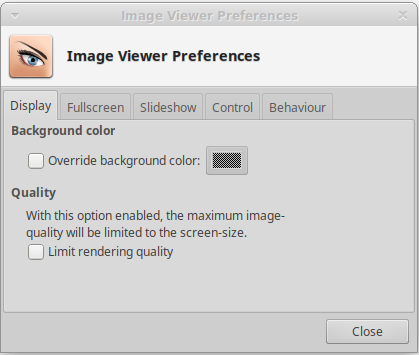
Display
| Display preferences |
|---|
|
? Limit Quality ! With this option set, the memory-usage of ristretto is limited because it will only render the images at the screen-dimensions instead of the maximum quality.
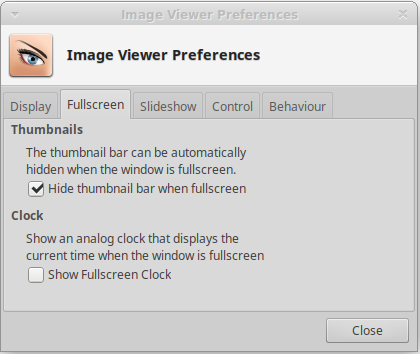
Fullscreen
| Fullscreen preferences |
|---|
|
? Clock ! When this option is enabled, a clock is visible when ristretto is in fullscreen mode.
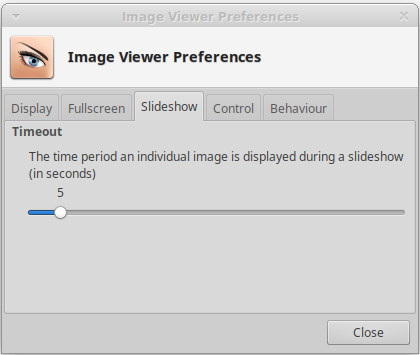
Slideshow
| Slideshow preferences |
|---|
|
? Timeout ! When showing a slideshow of images, the value of this slider determines how long Ristretto will show each image.
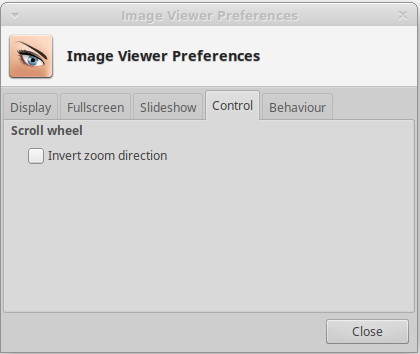
Control
| Control preferences |
|---|
|
? Invert zoom direction ! By default, Ristretto zooms in when you turn the scroll-wheel forward, and zooms out when you turn the scroll-wheel backward. For touch-pads, this can be awkward, because a two-finger scroll is more of a pushing and pulling action. With this option set, turning the scroll-wheel forward will zoom out (pushing the image away) and turning the scroll-wheel backward will zoom in (pulling the image closer).
Behaviour
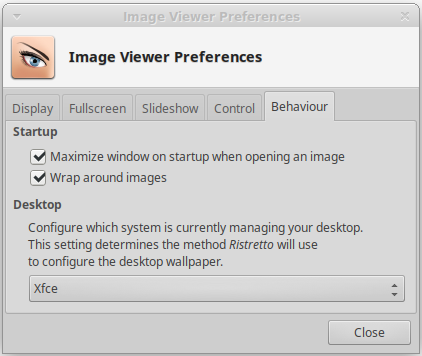
| Behaviour preferences |
|---|
|
? Wrap around images ! With this option set, Ristretto will wrap around images. When pressing Next on the last image, or Previous on the first image, it will jump to the Last or First image respectively.
? Choose Desktop ! Choose which desktop you are using, this determines the way ristretto configures the desktop wallpaper. Currently, GNOME and Xfce are supported.
Advanced options
Don't use Thunar to show the file-properties dialog
By default, Ristretto will ask thunar to pop-up the file-properties dialog. This way, you'll have the advantage of all of thunar's plugins that extend it's file-properties dialog beyond it's native functionality. Aswell as a consistent look-and-feel throughout the xfce desktop.
However, there are some cases where you want Ristretto not to use Thunar, but go for the build-in dialog all the times. This can be the case when you have Thunar installed, but don't use it. Launching the file-properties dialog from Ristretto will then cause Thunar to be launched, making it a pretty expensive dialog.
Being a somewhat advanced feature, this option is not exposed through the preferences-dialog, and can only be enabled through the xfconf command-line utility xfconf-query. This can be done as followed:
$ xfconf-query -c ristretto -p /window/use-thunar-properties -n -t bool -s false
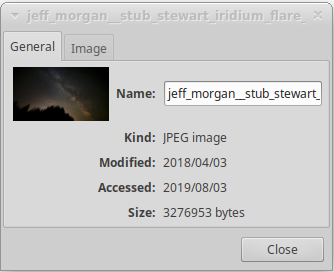
The internal file-properties dialog will look like this:
| Internal file properties dialog |
|---|
|