
xfce4-terminal - Usage
Opening and closing terminals
? To open a new terminal window ! Choose File → Open Terminal (or right-click the terminal window and choose Open Terminal). ! The new terminal by default inherits the working directory from its parent terminal (may be changed via hidden options).
? To close a terminal window ! Choose File → Close Window. ! This action closes the terminal and terminates any subprocesses that you opened from the terminal. If you close the last terminal window, the application exits.
? To add a new tabbed terminal to a window ! Choose File → Open Tab (or right-click the terminal window and choose Open Tab). The new terminal by default inherits the working directory from the previously active terminal.
Modifying a terminal window
? To hide the menubar ! Choose View → Show Menubar (or right-click the terminal window and choose Show Menubar).
? To show a hidden menubar ! Right-click the terminal window and choose Show Menubar from the popup menu.
? To show or hide the toolbar ! Choose View → Show Toolbar.
? To show or hide the window decorations ! Choose View → Show Window Borders.
? To put a terminal window into fullscreen mode ! Choose View → Fullscreen from the menubar (or right-click the terminal window and choose Fullscreen).
? To change the appearance of the terminal window ! See the section called Preferences for information about the options that you choose in the Xfce Terminal Preferences dialog to change the appearance and behavior of the terminal windows. For example, you can change the background color or the location of the scrollbar.
Working with the contents of terminal windows
? To scroll through previous commands and output
! Perform one of the following actions
- Use the scrollbar, which is usually displayed on the right side of each terminal window.
- Press the Shift-Page Up, Shift-Page Down, Shift-Up (Ctrl-Shift-Up in 0.8.0), Shift-Down (Ctrl-Shift-Down in 0.8.0), Shift-Home, or Shift-End keys.
- Use the middle wheel button on your mouse if applicable.
! Terminal mimics the FreeBSD console when Scroll Lock is pressed. When scroll lock is active, ordinary input and output from the shell is suspended and you can scroll through the history with Shift-Page Up and Shift-Page Down or using the optional scrollbar. Press Ctrl-S to activate the scroll lock and Ctrl-Q to disable it afterwards. ! The number of lines that you can scroll back in the terminal window is determined by the Scrollback setting in the General section of the Terminal Preferences dialog.
? To select and copy text ! You can select text in any of the following ways:
- To select a character at a time, click on the first character that you want to select and drag the mouse to the last character that you want to select.
- To select a word at a time, double-click on the first word that you want to select and drag the mouse to the last word that you want to select.
- To select a line at a time, triple-click on the first line that you want to select and drag the mouse to the last line that you want to select.
! These actions select all text between the first and last items. For all text selections, Terminal copies the selected text into the clipboard when you release the mouse button. To explicitly copy the selected text, choose Edit → Copy.
? To paste text into a terminal ! If you previously copied text to the clipboard, you can paste the text into a terminal by performing one of the following actions:
- To paste text that you copied by selection only, middle-click at the command prompt. If you do not have a middle mouse button, refer to the X Server documentation for information about how to emulate the middle mouse button. This is equivalent to using the Edit → Paste Selection.
- To paste text that you explicitly copied, choose Edit → Paste.
? To drag a file name into a terminal window ! You can drag a file name to a terminal from another application such as a file manager or a web browser. The terminal displays the path and the full name of the URI.
? To access a hyperlink ! To access a Uniform Resource Locator (URL) that is displayed in a terminal window, perform the following steps:
- Move the mouse over the URL until the URL is underlined.
- Right-click on the URL to open the context menu.
- Choose Open Link from the context menu to start your preferred Web Browser and display the file located at the URL. Since 0.8.0, you can also use Ctrl-click for that.
? To compose an email ! To compose an email to an address that is displayed in a terminal window, perform the following steps:
- Move the mouse over the email address until the email address is underlined.
- Right-click on the email address to open the context menu.
- Choose Compose Email from the context menu to compose an email in your preferred Mail Reader.
Changing the terminal title
| To change the terminal title |
|---|
|
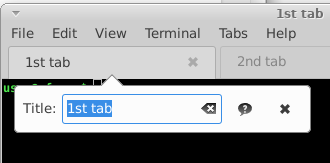
To change the title of the currently displayed terminal, perform the following three steps:
- Choose Terminal → Set Title... or double-click the the terminal tab header.
- Type the new title in the Title text box. Terminal applies the change immediately.
- Click the button Close or press the Return key to close the Set Title dialog.
To reset the terminal title to its default behavior, perform the same three steps as described above, but enter an empty title.
Terminal will substitute these tokens:
%d: name of the current directory (short).%D: current directory (long).%w: window title set by shell.%#: the session id.
Recovering your terminal
This section provides some advice if you have problems with terminals.
? To reset the terminal ! This will reset the internal state of the terminal. Choose Terminal → Reset.
? To reset the terminal and clear the terminal screen
! Choose Terminal → Clear Scrollbar and Reset. You can also use the shell commands reset and clear.
Switching between different encodings
- Choose Terminal → Set Encoding and select your preferred encoding from the menu. This only applies to the active terminal.
- Select a default encoding in the Advanced section of the Terminal Preferences dialog.