This is an old revision of the document!
Preferred Applications
As of Xfce 4.3, the Preferred Applications framework can be used to easily manage default applications used for various services. This includes selecting the default application to be used as a web browser, mail reader, file manager and terminal emulator.
Usage
You can access the application by clicking on the Preferred Applications button in the Xfce Settings Manager. The window contains two tabs containing the various applications that can be customised.
Internet
The first tab of the Preferred Applications window allows you to select your default Web Browser and Mail Reader. The Web Browser will be used to open hyperlinks that you click on and to display the documentation, whereas the Mail Reader will be used to compose emails when you click on email addresses, for instance on a website.
| Preferred Internet applications |
|---|
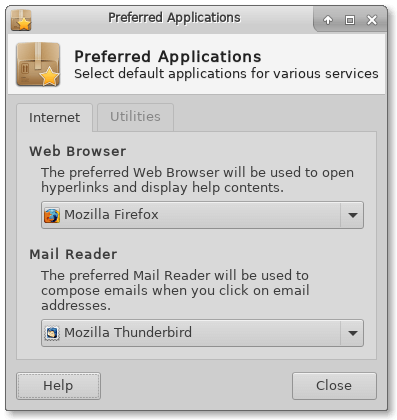 |
To select a different web browser to be used for opening links, click the drop-down menu in the Web Browser section, and choose your desired browser from the list of web browsers that are detected.
If the browser you are looking for is not automatically detected by the system, you can select Other... from the drop-down menu and a dialog will appear asking you to enter the command to execute the custom browser, as shown below.
| Specify a custom Web Browser |
|---|
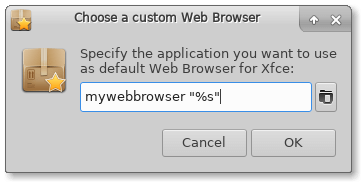 |
The “%s” in the command will be substituted with the URL when you click on a hyperlink.
exo-open –launch WebBrowser, only the binary of the specified command will be used and any parameters will be stripped off. In the example above, with mywebbrowser “%s” as the custom web browser, the command mywebbrowser will be used to open the browser without an URL.
Utilities
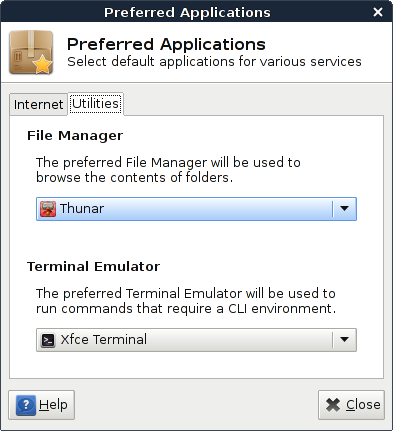
The first page of the configuration dialog allows you to select your preferred terminal emulator. The preferred terminal emulator will be used throughout the Xfce Desktop Environment to launch applications that need to be run in a CLI (command line interface) environment.
| Other applications |
|---|
|
For custom terminal commands, the special marker %s will be substituted with the application to run in the terminal. Otherwise the same rules apply as described in the section Internet applications.
exo-open
A simple command line frontend to the Xfce Preferred Applications framework is included, named exo-open. Users and developers can use this utility to launch the preferred application for a certain category or open URLs with the default URL handler.
exo-open supports two operation modes. The first will simply launch the preferred application for a certain category, optionally passing a parameter (the exact meaning of the term parameter depends on the category). For example, to launch the command mutt in the preferred Terminal Emulator, you would use
exo-open --launch TerminalEmulator mutt
while to just open the preferred Web Browser, the following command would be used:
exo-open --launch WebBrowser
The second mode supported by exo-open opens all parameters passed to it with the default URL handlers. Here URLs mean either fully qualified URLs (i.e. http://www.xfce.org/ or mailto:xfce4-dev@xfce.org) or local paths (i.e. /home/dude/myfile.txt). For example to open /home/dude/file1.mp3 and /home/dude/file2.txt in the default applications, you would use the following command:
exo-open /home/dude/file1.mp3 /home/dude/file2.txt
To start composing a mail to the xfce4-dev mailing list, you can do:
exo-open mailto:xfce4-dev@xfce.org