This is an old revision of the document!
Mouse and Touchpad
Device
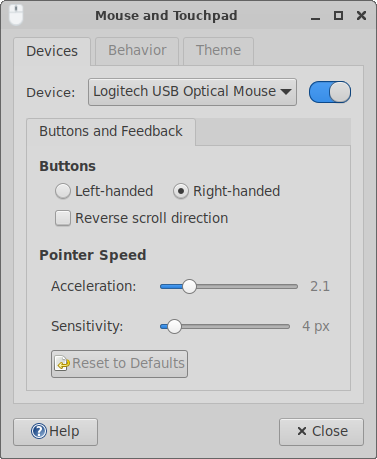
| Device Settings |
|---|
|
? Device ! With this combo box you can select the device you want to edit, the settings below will adjust to the selected device. The list shows all connected pointer devices. ? Enable this device ! Uncheck this option to turn a device off. If a device it disabled, it won't send any coordinate updates to the pointer. By default all (new) devices are enabled.
Buttons
? Right-handed and Left-handed ! If you select Left-handed the primary and secondary buttons on the mouse will be reversed. ? Reverse scroll direction ! If this option is enabled, the scroll direction will be reversed (sometimes called “natural scrolling”).
xinput utility. First find the device ID using xinput list and then view the mapping of the device with xinput get-button-map <device-id>.
Pointer Speed
? Acceleration ! The factor at which the pointer's speed will increase as the cursor is moved, when the device moves more than Sensitivity pixels in a short time. ? Sensitivity ! The number of pixels the pointer must move in a short time before it starts accelerating.
Behavior
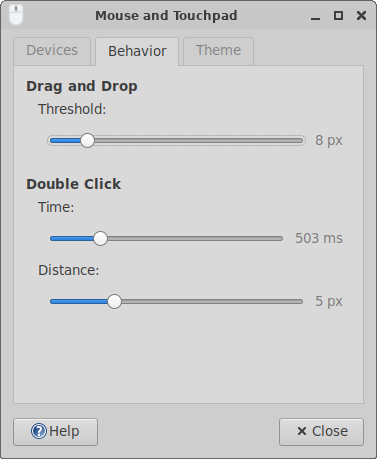
| Behavior Settings |
|---|
|
Drag and Drop
? Threshold ! The number of pixels the pointer must move before a drag operation will start. Default value is 8 pixels.
Double Click
? Time ! Two mouse clicks in less than this length of time (in milliseconds) will be considered a double click. Default value is 250 ms. ? Distance ! The mouse pointer cannot move farther than this distance between two clicks for them to be considered a double click. Default value is 4 pixels.
Cursor
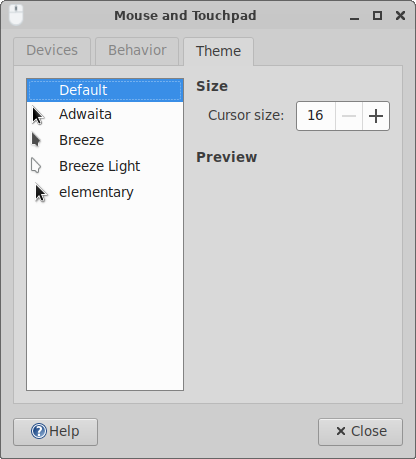
| Cursor Theming |
|---|
|